Sky Glass IPTV UK: Apps, Players, Setup and Troubleshooting Guide
Finding the right Sky Glass IPTV setup in the UK can be confusing, especially when you are unsure which app to use, whether your television supports it, or why your streams keep buffering. Understanding the difference between the television, the IPTV player, and the subscription makes the process much easier.
This guide explains what Sky Glass IPTV means, how to choose a compatible player, how to set up your service on a supported device, and how to solve common playback problems. It also covers subscription considerations to help you make an informed decision before paying.
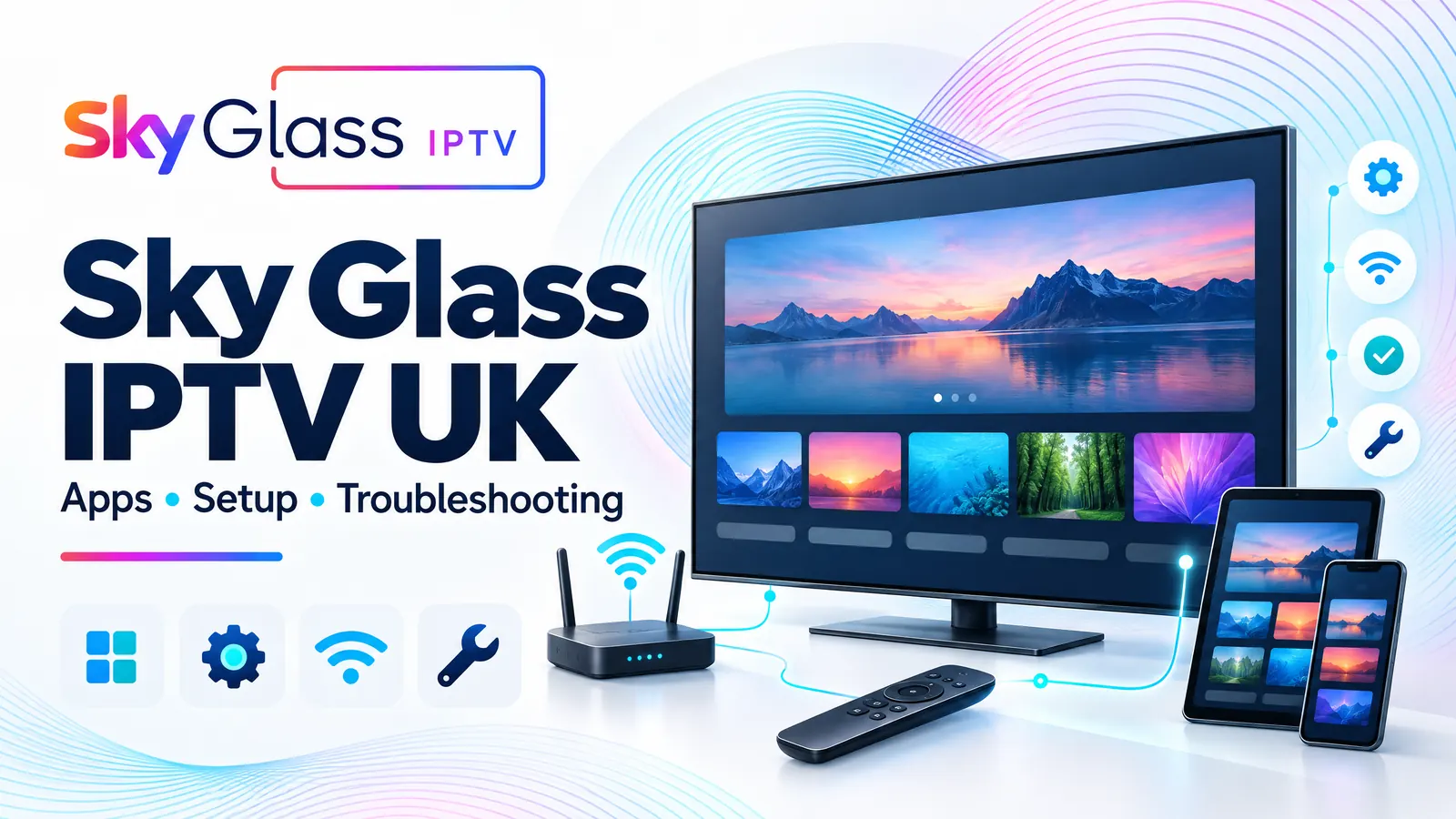
What Is Sky Glass IPTV?
The term Sky Glass IPTV can refer to different things depending on where you encounter it. Sky Glass is Sky's internet-connected television, while the phrase is also used online to describe IPTV services or player apps with an interface inspired by Sky's television layout.
These are not necessarily the same product. Sky's official television platform provides access to supported streaming services, whereas an independent IPTV service may require a separate compatible application and account. Sky's official guidance explains that the television can also connect to external devices through HDMI.
When searching for Sky Glass IPTV UK, check which product or service a website actually offers. Do not assume that an app using a similar name is an official Sky application.
How Does Sky Glass IPTV Work in the UK?
An IPTV setup generally has three main components:
- IPTV service: Provides access to the television streams or other content included in your account.
- IPTV player: The application used to load your account or playlist and organise available content.
- Internet connection: Carries the streams to your television or compatible device.
Some players support M3U playlist URLs, while others accept Xtream Codes login details. The available options depend on the application and the service you use.
For example, installing a Sky Glass IPTV player does not automatically provide television channels. You may need separate, valid access details from your service provider.
Before choosing a service, confirm that it is authorised to distribute the content it offers in your location.
Which Sky Glass IPTV App Should You Use?
Choosing the correct Sky Glass IPTV app depends on your device, operating system and preferred login method.
Using an IPTV player on a compatible device
If you have a Fire TV Stick, Android TV device, or another supported streaming device, check its official app store for compatible IPTV players. Read the app description and confirm that it supports your account format before installing it.
Some commonly discussed player names include IPTV Smarters Pro and TiviMate. However, their availability and compatibility vary by platform. Do not assume that every player works on every television.
Can you install an IPTV app directly on Sky Glass?
Sky Glass uses a controlled television platform with a limited selection of supported applications. You should not assume that an Android IPTV APK or an app available on another Smart TV can be installed directly.
Check the current supported app list and your television's documentation first. If your preferred application is unavailable, an external streaming device connected through HDMI may be an alternative, provided the application and service support that device.
The terms sky glass app iptv, sky glass tv iptv and iptv skyglass may appear in online searches, but the wording alone does not establish compatibility or official status.
How to Set Up Sky Glass IPTV on a Compatible Device
Follow these steps when configuring a compatible IPTV player with a service you are authorised to use.
- 1
Check your device
Identify whether you are using a Sky Glass television, Fire TV Stick, Android TV device, Smart TV, or another platform. Confirm that your chosen player supports it.
- 2
Install the appropriate player
Use the device's official app store whenever possible. If an alternative installation method is necessary, verify the app's source and compatibility before proceeding.
- 3
Obtain your account details
Your service provider should explain which login method is supported. This might be an M3U playlist or Xtream Codes credentials, depending on the player and service.
- 4
Enter the information carefully
Open the application, select the correct login option, and enter the supplied details. Check for typing errors, unnecessary spaces, and incorrect server addresses.
- 5
Allow the playlist to load
Give the application time to retrieve the available content and programme information. The loading time will depend on your connection, the player and the service.
- 6
Test playback
Try an authorised stream and check whether video, audio and programme information work correctly. If playback fails, note the exact error before changing settings.
This process is a general guide. The actual menus and login options may differ between applications and devices.
How to Fix Sky Glass IPTV Buffering and Playback Problems
Buffering does not always mean that your subscription has stopped working. The cause could be your Wi-Fi connection, device performance, application settings, account status or the service itself.
Try the following checks in order.
1. Check your internet connection
Open another streaming application on the same device. If that also buffers, investigate your broadband connection first.
Move closer to the router, reduce network congestion or test a wired connection if your equipment supports it.
2. Restart the device and router
Restart the streaming device and IPTV player. If other applications are also experiencing problems, restart your router according to its instructions.
Test playback again before making further changes.
3. Check your subscription and login details
If you receive an authentication error or cannot load your playlist, confirm that your account is active and your credentials are correct.
Contact your provider if the details appear correct but access remains unavailable. Never share passwords or complete login information in public forums.
4. Update the player
An outdated application may have compatibility or performance problems. Check for updates through the official source and review any relevant release information.
If you are considering reinstalling the app, first confirm that you can recover your login details.
5. Determine whether the problem is service-related
If other applications work normally but every stream in your IPTV player fails, the issue may involve your account, playlist, or service provider.
Record the error message, the device model, and whether the problem affects all streams or only one. This information makes technical support more useful.
What Do Real Users Ask About Sky Glass IPTV?
Online discussions reveal several practical concerns around Sky Glass-style IPTV applications.
In a Reddit thread, users asked how to find an IPTV service with a Sky Glass-style interface and discussed login failures, provider access, and differences between player applications. Other discussions compare applications such as TiviMate and IPTV Smarters Pro, particularly in relation to interface preferences and compatibility.
These discussions highlight three useful points:
- A familiar interface does not guarantee the same service. Two applications may look similar but use different accounts, playlists, or providers.
- Changing the player may not solve every problem. If the account or source is unavailable, another interface will not necessarily restore access.
- Check compatibility before paying. Confirm that the application works on your device and accepts the login method supplied by your provider.
These are individual user experiences, not proof that every IPTV application has the same limitations.
What to Check Before Buying a Sky Glass IPTV Subscription
Choosing a Sky Glass IPTV subscription requires more than comparing prices. Review the following points before committing to a plan.
- Content rights: Check whether the provider is authorised to offer the channels and content advertised in the UK.
- Device compatibility: Confirm that your intended device and player are supported.
- Subscription duration: Understand the start date, expiry date and renewal conditions.
- Payment security: Use a payment method that offers appropriate protection and obtain written confirmation of your purchase.
- Customer support: Check how to contact the provider if login or playback problems occur.
- Cancellation terms: Understand the refund policy and whether renewal happens automatically.
Avoid providers that make unrealistic promises or pressure you into long subscriptions without explaining the terms.
If you are considering a subscription from our website, visit Sky Glass IPTV to review the available information and confirm the details that matter to your setup before ordering.
Frequently Asked Questions
What is Sky Glass IPTV in the UK?
The term can refer to independent IPTV services or applications using a Sky Glass-style interface. It should not automatically be understood as an official Sky product. Check the provider, application, and content rights before subscribing.
Can I install the Sky Glass IPTV app directly on my television?
Not necessarily. Sky Glass supports a controlled selection of applications, and third-party IPTV players may not be available. Check current compatibility or consider a supported external streaming device.
What is a Sky Glass IPTV player?
A Sky Glass IPTV player is an application used to load and organise IPTV content when supported by the device and service. A player does not necessarily include a subscription or provide its own content.
Is Sky Glass IPTV the same as Sky TV?
No. Sky Glass is an official television product, while independently offered IPTV services and player applications are separate. Similar branding or interface design does not establish an official relationship.
Why is my Sky Glass IPTV app not working?
Possible causes include incorrect login details, an expired account, an unsupported device, an application problem or a network issue. Test other applications and check your account before contacting your provider.
Why does Sky Glass IPTV keep buffering?
Buffering may result from weak Wi-Fi, network congestion, device limitations or problems with the content source. Test your connection, restart the device and check whether the issue affects all streams.
Can I use a Sky Glass IPTV subscription on multiple devices?
That depends on the provider's terms and the subscription you purchase. Confirm the permitted number of connections and supported devices before sharing or switching account access.
What should I check before renewing my IPTV subscription?
Verify the renewal price, duration, payment terms, device compatibility, cancellation policy, and the provider's authorisation to distribute the content. Keep a record of your renewal confirmation.
Conclusion
A reliable Sky Glass IPTV setup starts with understanding the difference between the television, the player application, and the subscription. Confirm compatibility before installing software, use valid account details, and troubleshoot network or login problems systematically.
Whether you searched for sky glass iptv, skyglass iptv, sky glass iptv app, sky glass player, or iptv skyglass, the most important step is to choose a compatible, trustworthy service and verify its terms before paying.
Ready to check plans or request a trial?